|
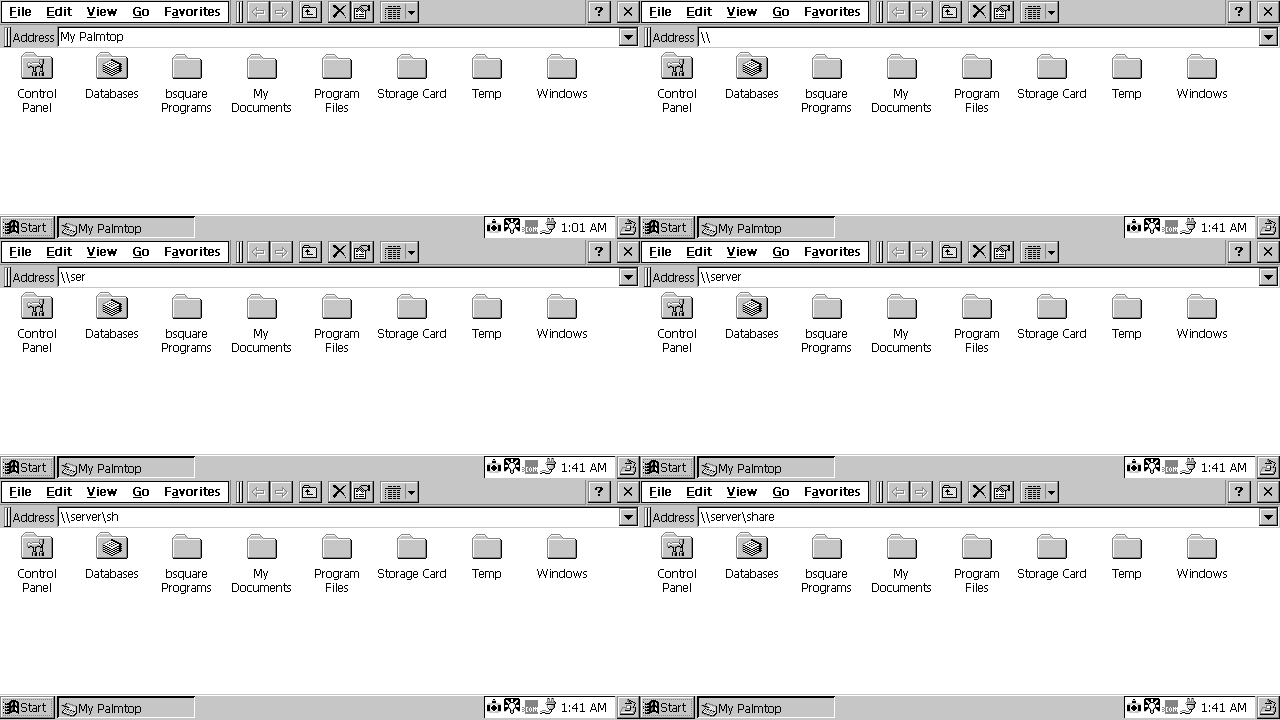
Windows CE has no native Network Neighbourhood / My Network Places explorer area. In order to access Network Shares you must use the remote computers Universal Naming Convention (UNC) path.
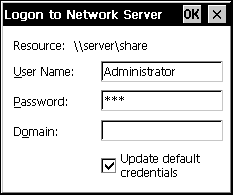
UNC paths enable you to access the Network shares of Remote computers. Windows CE can only access resources which require authentication on a Microsoft Windows based Workgroup or Domain based network.
Universal Naming Convention format:
UNC uses a two level structure to access available resources. The first level of a Network UNC path specifies the Machine Name or the 'Server Name' of the computer on the remote network.
To discover the machine name of a computer you wish to access:
Windows 2000 / XP / 2003
- Open the Windows 'Control Panel'
- Select the 'System' Applet
- Choose the 'Computer Name' tab
- The Machine Name is listed in the 'Full Computer Name' area
Windows 95 / 98 / Millennium / NT4
- Open the Windows 'Control Panel'
- Select the 'Network' Applet
- Choose the 'Identification' Tab
- The Machine Name is listed in the 'Computer Name' entry
The Machine Name is always preceded by the prefix \\ . For example if the Computer Name of the resource you want to access is 'Inspiron' the UNC name is \\inspiron
The second level of a Network UNC path specifies the remote 'Share Name' that you wish to access.
To discover the name of a remote share you need to access access the Root Listing of the Remote server by simply entering only the Computer name in UNC format. This will present a list of all available shares on the remote computer.
The Share name is always preceded by a \ and by the Machine Name of the computer it resides on. For example if you wish to access the network share 'Data' on the computer 'Inspiron' the UNC address is \\inspiron\data ( \\server\share ).
If you are connecting to a corporate network check with your Administrator for the server and share details.
NB: More information on Creating a Network Neighbourhood / My Network Places explorer for the H/PC can be found in CESD article CESDC0005
|