| ||
Changing the serial connection speed for ActiveSync connectionsCESD|200146Applies To
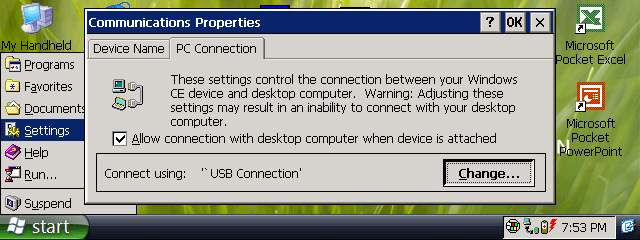
OverviewIn the default Operating System configuration for most H/PC class devices, the OEM has left the Serial port baud rate set to the default 19,200 bps. This article discusses how to increase the connection speed when synchronising with ActiveSync. More InfoWhen connecting a Handheld PC to Microsoft ActiveSync version 3.0 or higher, the desktop PC's serial ports will be automatically configured ad-hoc to match the data baud rate of the connecting H/PC. All RS232 serial ports are designed to comply to the same data transmission standards. The RS232 standard allows for a maximum transfer rate of 115.2 Kbps (115,200 BPS). The proprietary port type on your Handheld PC, despite not using a regular DB9 connector is designed to comply with the standard. To change the speed of the serial communication between the host PC and the H/PC when using ActiveSync, you need to change the connection mode to the 115.2 Kbps profile. How-to GuideWindows CE was designed to make synchronisation connections using a system similar to, but isolated from the Remote Networking layer. Synchronisation connections over serial should be initiated from the PC Link application and not from Remote Networking. To select the communications profile used by PC Link
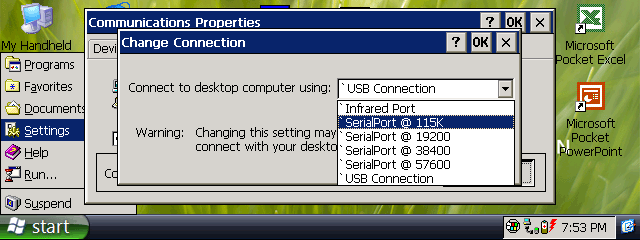
The default, ActiveSync designed profiles are prefixed with the ' character. Most serial users should select the SerialPort @ 115K option. There are some known circumstances with older Windows CE 2.0 devices where the port is not always able to reliably create a 115.2 Kbps connection. If after several attempts your H/PC is unable to create a connection, or you notice reliability issues with the stability of the connection. Reduce the connection profile to SerialPort @ 57600. |