Replacing the Coin Cell Backup power supply in a Handheld PC
CESD|200033Applies to
- Windows CE 1.0, CE 1.01
- Windows CE 2.0, CE 2.0 SP1
- Windows CE 2.11, CE 2.12 (Handheld PC Professional)
- Windows CE 3.0 (Handheld PC 2000)
Contents
This article discusses the requirement of a Redundant Power Supply in models of Handheld PC and their replacement procedure if using a coin cell.
FAQ
Listed below are some common questions and answers to user questions regarding the replacement of a Back-up Cell in a H/PC
A. When should I replace the Coin Cell
If you Handheld PC is equipped with a Back-up power source, you will be notified by Windows CE when the Back-up Cell is running low. When the battery begins to loose charge a warning Icon will be displayed in the System Tray, next to the clock. When the power status changes from a Low power state to a Critical power state a Warning Message will be displayed on screen. At which time you should change the Cell immediately.
You can also check the status of the back-up battery from the Power applet in Control Panel.
It is important to maintain a healthy back-up cell in you Handheld PC. As a result there is no intermediate Power Status stage in the Back-up battery's level. Make sure to observe the Best before date for your back-up source as a out of date battery could prove ineffective against a main cell power outage.
A. Why do I need to have a back-up battery
The back-up battery is a redundant power source for your Handheld PC. It is not able to provide power for device operation. The purpose of the Coin Cell is to provide a constant supply of power to your devices RAM. As the RAM is a Volatile Memory core, loss of power for any short amount of time will cause it to be wiped.
An examples of when the Back-up battery is needed is in the event of a main power supply failure. For example if your devices main batteries fail during operation and the Handheld PC powers down, the Coin Cell will provide charge to the RAM while the main power supply is down, while the main battery's are physically missing (e.g. being changed), or until the device is connected to a mains socket.
Without the presence of the coin cell, within 15 - 240 seconds of a mains power failure the devices Volatile RAM core will be wiped, a Hard Reset will have been performed and all data in RAM will be lost.
At all times when there is sufficient power from a Main battery or Mains Socket source the Back-up cell will not be drained. Establishing a good power supply policy for your Handheld PC device will essentially require you to change your back-up cell only when the expiration date is reached.
A. Do all Handheld PC's have coin cell backup batteries
No. Unfortunately some manufacturers opted to make use of alternate power solutions, such as AAA batteries. Additionally there are a number of Handheld PC devices, for example LG and NEC ranges which make use of internal, non-removable battery styles. Such devices often require specialist technical assistance in the event that the integrated cell becomes depleted and can no longer provide an adequate charge.
A. Which Cell should I purchase
The Cell / Coin Cell type may differ depending on the Device & Manufacturer. Below is a list of Handheld PC devices and required Cell types.
Note that not all of the devices listed below have user replaceable backup batteries
| Handheld PC |
Cell # |
Voltage |
| Ericsson MC12 |
CR 2032 |
3V |
| Ericsson MC16 |
CR 2032 |
3V |
| HP 300LX |
CR 2032 |
3V |
| HP 320LX |
CR 2032 |
3V |
| HP 340LX |
CR 2032 |
3V |
| HP 360LX |
CR 2032 |
3V |
| HP 620LX |
CR 2032 |
3V |
| HP 660LX |
CR 2032 |
3V |
| IBM Workpad z50 |
AAA x2 / LR03 x2 |
1.5v + 1.5v |
| Jornada 680 |
CR 2032 |
3V |
| Jornada 680e |
CR 2032 |
3V |
| Jornada 690 |
CR 2032 |
3V |
| Jornada 690e |
CR 2032 |
3V |
| Jornada 710 |
CR 2032 |
3V |
| Jornada 720 |
CR 2032 |
3V |
| Jornada 728 |
CR 2032 |
3V |
| Jornada 820 |
CR 2032 |
3V |
| LG Phenom H220 |
ML2430 |
3V |
| NEC Mobile Pro 200 |
CR 2032 |
3V |
| NEC Mobile Pro 400 |
CR 2032 |
3V |
If you have any additional information on Coin Cell compatibility please Contact Us.
How-to Guide:
The Coin Cell battery should be replaced using the following procedure.
NB: This article is specifically written for the HP 300 series and the Ericsson MC Series. Replacement procedures will be similar on other H/PC's, however slot style and location may differ.
Before replacing your Back-up Battery. Ensure that your main batteries are fully charged and or that your device is 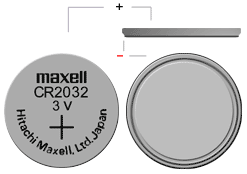 connected to mains power.
Have a back-up of your files and databases.
- Save all open documents and close all open applications. Power Off your Handheld PC.
- Turn over your Handheld PC and carefully remove the Coin Cell compartment door.
- Using the Stylus, carefully place the nib into the small slot by the side of the Coin Cell and leaver the battery out of the slot.
NB: Be sure not to allow the stylus to slip forward as you leaver the Coin Cell out of the slot as the stylus may damage the negative terminal.
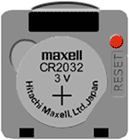 Insert the new Coin Cell face up so that the Positive terminal (+) is pointing upwards (See Image)
- Push the Coin Cell snugly down into the slot so that it locks into place.
- Place the cover back over the compartment.
You have now successfully replaced the Back-up Coin Cell on your Handheld PC. You can safely continue using your Handheld PC normally.
If you wish to check on the status of the Coin Cell's charge:
- Tap Start > Settings > Control Panel
- Open the 'Power' Applet
- On the 'Battery Type' tab change view the 'Backup Battery' section to check on the overall status of the back-up batter

