USB Infrared (IrDA)
or Fast Infrared adapter provides an intermittent connection
or fails to connect to initiate with H/PCCESD-H-0024Applies To:
- Windows CE 1.0, 1.01
- Windows CE 2.0, SP1
- Handheld PC Professional, SP1
- Handheld PC 2000
Overview:
When attempting to connect your Handheld PC to H/PC Explorer, Windows CE Services
or ActiveSync over an Infrared (IrDA) connection through a USB Infrared adapter.
The connection exhibits one of the following behaviours:
- The connection between H/PC and host is established but the services scan
of the device never completed preventing the sync from occurring
- The connection layer is established by the Sync client fails to activate
responding with the error "No Carrier Detected"
- The Sync client will only acknowledge the presence of the Handheld PC on
a sporadic basis
- The Infrared Lamp fails to detect the presence of the Handheld PC
More Info:
The above situations can occur under a number of circumstances. Trouble shooting
steps can be found below
Ensure that the Infrared Lamps are free from dust and grease. When cleaning
do not use a chemical solvent or polish as this may diminish the quality of
the IR pulses causing refraction or unnecessary reflection.
Clean using a damp general purpose soft cloth ensuring that the lens remains
scratch free and unblemished.
Optimal operating conditions for the device are:
- In an operating environment free from excess heat sources, high wattage
bright artificial lighting and direct sunlight
- Both lamps should be aligned within a field of no more that 120 degrees
for optimal coverage
- The distance between the two lamps should optimally be no more than 30 cm,
with an average acceptable range being 1m and maximum permissible safe range
of 5m for some (but not all) kinds of lamp
- Lamps should have direct line of sight, with no obstructions or reflective
surfaces in between
- Both lamps should be positioned on a stable surface with no physical movement
of either device during connections
Check with the manufacturer for updated device drivers. Updated drivers may
provide different driver and protocol settings along with optimisations for
the transceiver.
Adjust the Transceiver mode
Updated drivers may be required to provide access to the features outlined
in the following steps
NB: The process for changing the Lamp transceiver settings
under Windows 95, 98, 98SE and Millennium differ from those provided here.
- Click Start
- Expand Settings and open the Control Panel
- From the available options choose the System applet
- Expand the Hardware Tab
- Select Device Manager
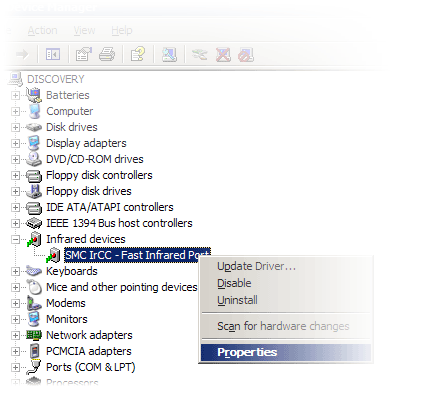
- In the Device Manger window, expand the Infrared devices option,
right click your Infrared device and choose Properties

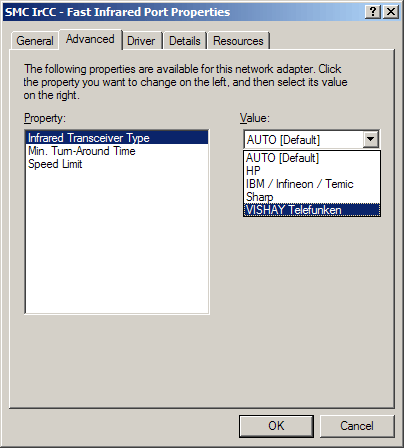
- Select the Advanced tab
- In the property section select the Infrared Transceiver Type option

- From the list select the VISHAY Telefunken option
- Accept all the settings changes by clicking OK
- Reboot your computer and test your connection
If this has not had any visible effect on the connection. Users may with to
repeat the above steps testing any additional transceiver types listed. You
should return the transceiver type to Auto for the next troubleshooting
step.
Reduce the Infrared Port Speed
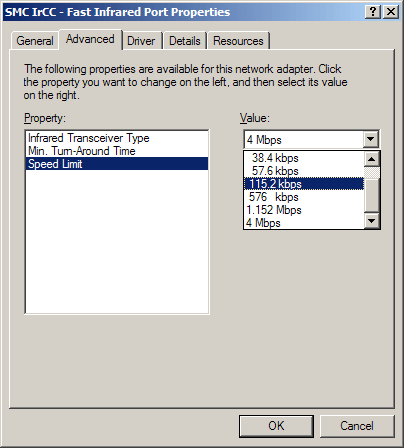
- In the Advanced tab for your IrDA adapter choose the Speed Limit
option

- Throttle the Value down to 115.2 kbps
- Accept the changes by clicking OK
- Reboot your computer and test the connection
Sync Client Settings
The Windows CE Sync client should be setup to access the Infrared port. The
procedure for this will differ slightly between Windows versions.
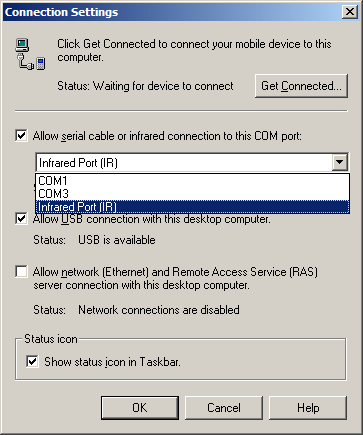
Under Windows 95, 98, 98SE and Millennium. Connections using serial
infrared or integrated Infrared adapters will make use of Virtual COM (vCOM)
assignment. Using vCOM, adapters will invisibly assign themselves a COM port
number as part of the driver installation (usually COM5 or higher) to connect
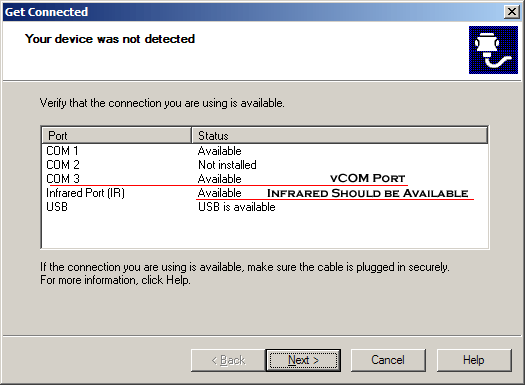
through. This will appear in both the Get Connected Window and in the Connection
Settings screen as show below. If you wish to use Handheld PC Explorer to make
an Infrared connection between a PC and a Windows CE 1.0 device, you must have
vCOM port available, and there for be using Windows 9x.
Under Windows 2000, XP, 2003 and Vista the use of vCOM mapping has been
abandoned in favour of a more dynamic resource management system. All users
should ensure that they are using ActiveSync 3.5 or higher - Windows CE Services
like H/PC Explorer requires a vCOM. In the dialogue below under one of these
platforms, no vCOM port will be listed.


If under Windows 9x either the Infrared Port or COMx (which is assigned to
the vCOM) references are missing or showing as Not Installed then either the
USB Infrared Adapter has not been installed correctly or another device is attempting
to make use of the IR hardware.
You should investigate and disable any Infrared hardware in the vicinity of
the transceiver as well as any other communications applications that may be
running on your computer.
|