Windows NT 4.0, SP1, SP2, SP3, SP4, SP5, SP6, SP6a
Windows 2000, SP1, SP2, SP3
Windows XP Home, XP Professional, SP1
Windows CE for Handheld PC
Windows CE for Palm-size PC
Overview
Users of monochrome devices who use desktop wallpapers on their devices often need more space on their device to store a large colour image. Windows CE supports it's own native Bitmap format with the extension .2bp. 2bp files are 4 Tone Monochrome bitmap files, designed for use on the limited displays of early Windows CE devices.
Tascal Software made an application that allows users to convert BMP files into 2BP format on their host desktop systems. This allows End Users and Wallpaper artists to make their packages available for lower colour depth devices, such as the 4 Tone Monochrome hp 320lx and the 16 Tone Monochrome 360lx. The utility also allows users to back convert 2BP files into similar BMP files. The back conversion process will create a BMP copy of the 2BP file, it will not restore colour information
The Tascal application, bmp2bp was only made available with Japanese menu's and Dialogues. This article discusses how to use Tascal bmp2bp and explains what the English translations of the menu's and dialogues are.
This article is primarily based around the CESD-S-0013 Multimedia Tutorial.
Note: As of January 2014, an English translated version of BMP2BP by Rich Hawley that is based upon this article is now available through the download centre link above.
The following how-to steps describe how to convert an image. It assumes that the user is familiar with the language translations provided in the Multimedia Tutorial.
Tascal Soft's bmp2bp must be run on a computer with H/PC Explorer, Windows CE Services or ActiveSync installed on it. The .2bp filters are provided with the Windows CE Synchronisation software and are required to save .2bp files. Running the program on a system without Windows CE Synchronisation software will export the converted files into Windows BitMap.
1.
Launch Tascal bmp2bp
2.
Import the BMP or 2BP image you wish to convert by:
Selecting 'File'
'Open'
or
Dragging the bmp file onto the bmp2bp window
3.
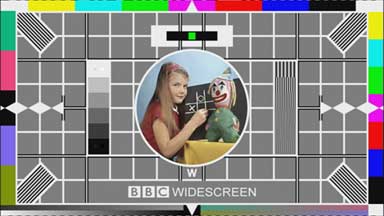
The imported image will be displayed in the bmp2bp window in the resolution and colour depth that it was originally encoded in.
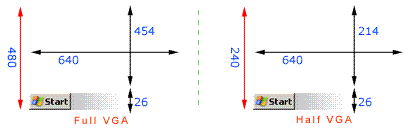
bmp2bp will not change the resolution of the image to fit to the Handheld Device's screen. To ensure that your images fit on the screen ensure that the dimensions meet the following criteria:
Full VGA: 640 x 454 + 26
Half VGA (Clam Shell): 640 x 214 + 26
From the 'Edit' Menu choose the 2bp transform method you want to apply to the image
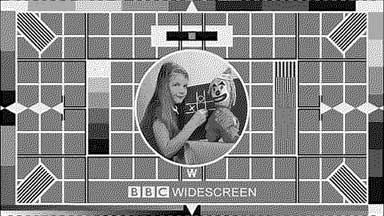
The Pattern Dissolve method takes the original image and uses diffusion variants of the 4 monochromatic shades to give the impression of more tones of Grey.
Use the Pattern Dissolve method when converting photographic images, and complex images with many colours or shades as you'll see from the central photographic image.
To undo the action, choose 'Undo' from the 'Edit' Menu
5.
Strict Mono:
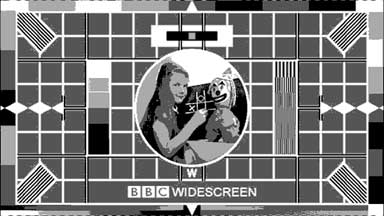
The Strict Mono method converts the image's pixels to their nearest neighbours on the 4 Tone Monochrome pallet. This method does not provide any shading and does not differentiate between objects.
Use the Strict Mono method to convert less complex images and graphics to 2bp format. As demonstrated by the coloured boxes in the outer border of the image. Strict Mono 2bp files are smaller than Pattern Dissolve converted images.
To undo the action, choose ' Undo' from the 'Edit' Menu
6.
Once you have the final version of the image save it by choosing:
'File'
'Save As...'
The default image method is .2bp. If you with to create a Windows CE Compatible .bmp, change the suffix .2bp to .bmp. The image will be saved in the 4 Tone Mono conversion as a regular BitMap file.