hp Month-at-a-Glance for Windows CE 2.0
CESD|200020Applies To
- Windows CE 2.0, 2.0 SP1
- hp Month-at-a-Glance
Overview
hp Month-at-a-Glance is an extension to the Microsoft Pocket Outlook PIM applications. It provides a more robust method of displaying calendar events under Windows CE 2.00.
Contents
FAQ
Listed below are some common questions and answers to user questions regarding Windows CE and Pocket Internet Explorer
A. Month-at-a-Glance opens at the incorrect date
Month-at-a-Glance uses the Windows CE System Clock to display the current date. To alter the System clock, you can:
Tap Start > Programs > Accessories > World Clock
Double tap the Clock on the taskbar
Or Choose Start > Settings > Control Panel and double tap World Clock top open the World Clock program and manually edit the time and date information
Alternatively you can configure Microsoft ActiveSync to automatically Synchronise the Date and Time upon connecting to the Synchronisation host system.
More Info
Month-at-a-Glance is a program bundled in the Hewlett Packard Windows CE 2.0 ROM Build.
The program was written by hp specifically for inclusion into its Windows CE 2.0 based Handheld PC's. It is not available under any other operating system or on any other device.
It provides several extensions to the Calendar features provided by Microsoft Pocket Outlook to view you appointment lists as a single month spread or in a 6 month duration.
Month-at-a-Glance provides complete integration into the Pocket Outlook application allowing you to easily browse through Calendar events at the touch of a button
| |
1. |
|
To make proper use of Month-at-a-Glance you will need to make use of Pocket Outlook's Calendar and time management facilities.
|
| |
|
| |
2. |
|
To launch hp Month-at-a-Glance:

If the Icon is missing, Month-at-a-Glance can be launched by choosing Start > Run > HPCView.exe, and tapping OK
or
By navigating to the \Windows directory and running HPCView.exe
|
| |
|
| |
3. |
|
Month-at-a-Glance will open and is designed to automatically display the current month, highlighting the current day,
The date settings are dictated either by the user in the World Clock utility, or automatically upon Synchronisation. If the system date is incorrect, the wrong month and day will be displayed.
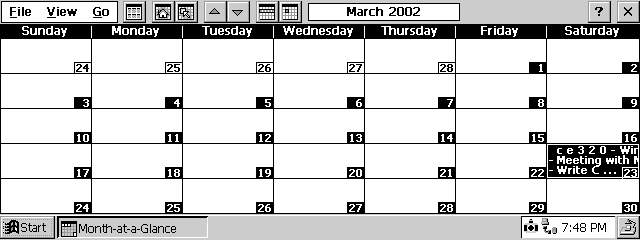
Calendar information is displayed in the boxes for each day allowing you to keep track of your schedule over a monthly period. Double tapping a day which has calendar content will automatically open Outlook Calendar's organiser at the correct date so you can organise your schedule.
Once Pocket Outlook has been opened, you can return to Month-at-a-Glance at any time by choosing either the Tray icon, by choosing its task bar entry or using Alt + Tab to cycle through the open applications.
If you wish to view the calendar events for a successive or previous month, use the  button to navigate up one month, and the button to navigate up one month, and the  button to navigate down 1 month button to navigate down 1 month
This view can be accessed within the Month-at-a-Glance application by tapping on the 1 Month view toolbar Icon  or cycling the key combination Ctrl + M.* or cycling the key combination Ctrl + M.*
|
| |
|
 |
4. |
|
Month-at-a-Glance also allows you to view your schedule in a 6 Month view
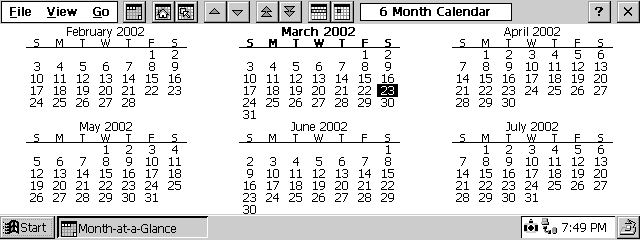
The 6 month view displays days which are marked with calendar events in bold. Double tapping on the date will open the Outlook Calendar program at that date allowing you to browse the scheduled events in detail.
The 6 month view allows you to scroll through previous and successive months in 2 ways. Firstly, use the buttons to navigate up or down in a 3 month period.
Secondly the   buttons allow you to scroll through on a 6 month basis, allowing for quicker visual access to your schedule buttons allow you to scroll through on a 6 month basis, allowing for quicker visual access to your schedule
This view can be accessed within the Month-at-a-Glance application by tapping on the 6 Month view toolbar Icon  or by cycling the key combination Ctrl + M.* or by cycling the key combination Ctrl + M.*
|
| |
|
| |
5. |
|
If you wish to view past calendar items or future ones you can quickly navigate to any point in the calendar, at any Day, Month or Year by choosing the Go To Date tool.
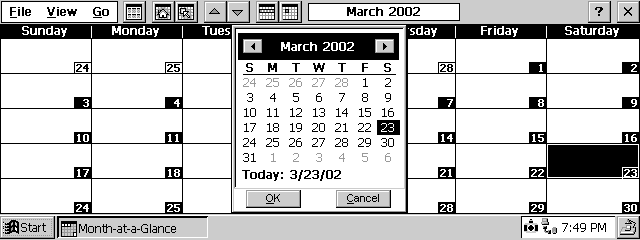
The Go To Date tool is accessed from its tool bar Icon  , from the Go menu or by pressing the key combination Ctrl + G.* , from the Go menu or by pressing the key combination Ctrl + G.*
A calendar box will be displayed, allowing you to scroll through the days, select the month's from a drop down menu and also to type the desired year.
When you have found the required date, tap the OK button to view the day in the main window
|
| |
|
| |
6. |
|
At any time while using the Month-at-a-Glance program, you can choose to open the Pocket Outlook calendar by either double tapping on the data in the 1 or 6 month view, or by using the  icon or by using the Ctrl + D key combination* icon or by using the Ctrl + D key combination*
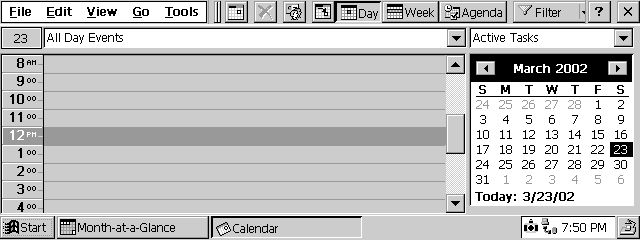
This launches calendar to the specified date allowing you to modify the entry's.
|
| |
|
| |
7. |
|
Alternately you can choose to view the calendar schedule in Pocket Outlook in weekly view.
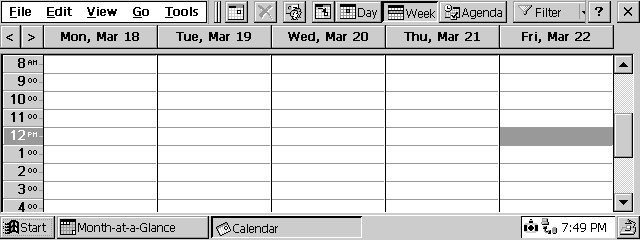
To do this Single Tap a date in the week you wish to view.
Press the  button on the toolbar or use the Ctrl + W command to open Calendar on that date. button on the toolbar or use the Ctrl + W command to open Calendar on that date.
NB: As demonstrated in the above image, the default setting in Pocket Outlook is to class a week as a 5 day working week. This can be changed in Calendar by choosing View > Number of days, and choosing the desired value
|
| |
|
| |
8. |
|
Finally, the Month-at-a-Glance 'File' Menu allows you to view the version of Month-at-a-Glance that you are using. Displayed here is the 'About screen' for Month-at-a-Glance.
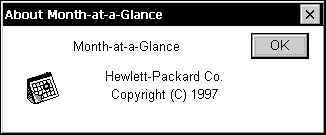
To exit the program either tap the cross in the top right of the screen
or Choose File > Exit
|
| |
|
* NB: More information on Windows CE Key commands can be found in CESD Productivity article CESDP0001
Links:
hp Jornada Home Page: http://www.hp.com/jornada

