Prevent a program from automatically starting after a soft reset
CESD|200013Applies To
- Windows CE 1.0, 1.01
- Windows CE 2.0, SP1
- Windows CE for Handheld PC Pro
- Windows CE for HPC2000
Overview
Windows CE provides a system for developers to launch their programs automatically on the soft reset of a device.
This article applies to users who install a program and do not wish it to load automatically, or wish to disable the auto start of a OEM installed program which they seldom use.
Contents
- FAQ
- Overview
- How-to Guide
FAQ
Listed below are some common questions and answers to user questions regarding Windows CE and Pocket Internet Explorer
A. Can I prevent a program from auto loading after a hard reset
No, you can not prevent a OEM application from loading after a device has been through the process of a Hard Reset. The Hard Reset process creates the shortcuts in RAM that start the applications once the GUI is loaded for the first time.
How-to Guide
The following how-to steps describe how to disable an application from automatically loading on a soft reset. It assumes that the user is familiar with using Windows CE Explorer.
| |
1. |
|
In order to prevent a program from auto loading, its shortcut must be removed from the start-up group
- From the Start Menu choose 'Run...', or use the Run key combination
- Type \windows\startup into the text box
- Tap OK
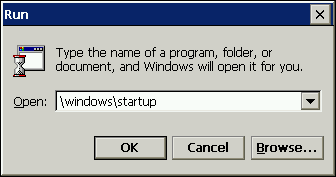
NB: More information on Windows CE Key commands can be found in CESD Productivity article CESDP0001
|
|
 |
2. |
|
Windows CE Explorer will open the Start-up Group folder. Here, and application that loads automatically under Windows CE 1 and 2 will be listed.
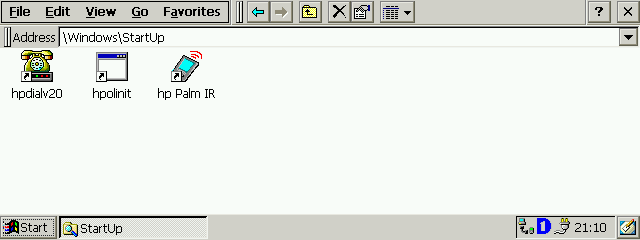
Find the shortcut that points to the program that you wish to disable. For Example 'HPC View Icon' to Disable hp Month-at-a-Glance
|
|
| 3. |
|
At this stage if you are sure that you will not need the shortcut again you can delete the shortcut file
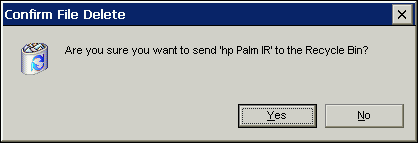
Alternatively, you may with to back-up the shortcut file into a storage folder on the Handheld PC, or onto a CF Card
|
|
| 4. |
|
Save all your work and close all open applications
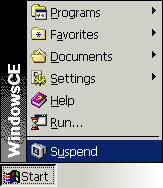
From the Start Menu choose Suspend and Soft Reset your Handheld PC device as per the manufacturers instructions. (hp 300 series users remove the back-up battery cover and use the stylus nib to press the Red button)
Once the Handheld PC has restarted the application you chose not to load automatically will have not been started
|

