| ||
Installing Applications onto your Windows CE device using the Host PCCESD|200051Applies To
OverviewThere are several ways that you can install applications onto your Windows CE based Handheld PC. This article covers the Host Side Installation method that you will find most commercial software presented in. NB: This article is not applicable to Windows CE 1.0x How-to GuideThere are three ways that a software developer my provide you with software for your Handheld PC. These are:
Each of the three types require a slightly different procedure to install the application. There are benefits for distributing software in the different types. The method by which a particular piece of software is distributed by is weighed up by the application developer. Host Installer - Using ActiveSync with a distribution packageThe Host side Installer is the most user friendly method of installing software. Most commercial software from larger companies will be distributed in a Host Side installation package.
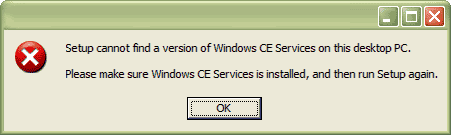
When you purchase software either on CD or as a download from the Internet you will begin the installation process on the computer which you synchronise (Host PC) by double clicking on the setup.exe, or similar installation wrapper file. Host side installers provide you with a familiar interface to install software. You can specify custom installation options and where necessary enter product keys for the software license on the Host PC. Host side installation universally requires that Microsoft ActiveSync be installed, operational and have a functional partnership with your H/PC. If you attempt to initiate a host installer without ActiveSync installed you will be presented with the following error message:
This is intrinsically the down side of Host based installation, as software installation for users who lack ActiveSync communication hardware, are restricted by corporate installation policies or who are unable to connect their device to the installed version of ActiveSync (e.g. CE 1.0 cannot connect to ActiveSync 3.0, CE 2.xx cannot connect to ActiveSync 4.2) will be unable to install the application. Once you have completed the setup wizard the Handheld PC software will be copied into the Program Files folder on your Host PC. Usually the software is placed in either: The next time you connect your Handheld PC, or any device that is compatible with the software you have installed. ActiveSync will prompt you to confirm that you wish to install the application to the connected device. The connected device must have a partnership established on the local computer in order for the installation process to work.
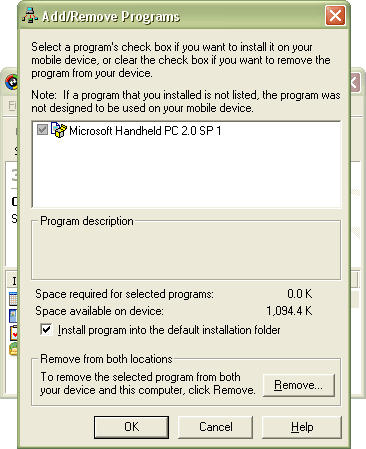
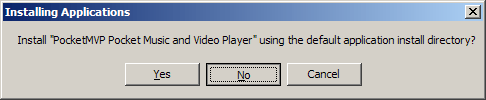
Host side Add/Remove Program ControlHost installation also provides you with control of the application from within ActiveSync. Using Add/Remove Programs from the tools menu. You can uninstall and crucially reinstall the applications from your remote device. ActiveSync 3.x also allows you to uninstall the application from the Host computer. The majority of applications distributed with host installers can also be uninstalled from the main Windows Control Panel's Add / Remove Programs (Add or Remove Programs) on the Host PC. When using a host installer as the final phase of the install operation ActiveSync will take over from the host installer for the task of copying the new program to your device. You will be prompted to choose whether you wish to install the the applications default location (specified by the developer, usually under \Program Files\<developer>) or to specify your own installation directory.
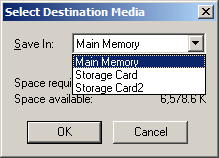
If you choose to specify your own installation directory ActiveSync will prompt you to choose whether you wish to install into your devices Main Memory, 0r, onto any Storage Cards it finds present.
Simply choose the location and click OK. ActiveSync will copy the file data over to your Handheld PC and the installation will begin. Depending on the application you may be prompted once again to specify a more specific location within your devices file system to place the program. Once the Host site installation has completed ActiveSync will prompt you to check your devices screen for any further installation steps or information.
The program has now been installed onto your Handheld PC. While applications distributed in this manor provide ease of use and allow for the highest level of application control by the developer. For the end user you are required to use your Host computer to carry out the operation. If you do not or cannot connect your Handheld PC to your computer you will not be able to install the application in this way. |