| ||
Installing Applications onto your Windows CE device when there is no automated installerCESD|200053Applies To
OverviewThere are several ways that you can install applications onto your Windows CE based Handheld PC. This article covers the Flat File Upload method that you may find software presented in. NB: This article is not applicable to Windows CE 1.0x How-to GuideThere are three ways that a software developer my provide you with software for your Handheld PC. These are:
Each of the three types require a slightly different procedure to install the application. There are benefits for distributing software in the different types. The method by which a particular piece of software is distributed by is weighed up by the application developer. Flat File Upload - Installing Applications which have no Automated InstallerDistributing software using a flat file installation is uncommon. It is especially unusual with commercial software. Flat Files are usually provided for freeware and small stand-alone applications that you download from the Internet. This method of installing software is the least user friendly and requires the end user to be confident in using the Windows CE Explorer on their Handheld PCs.
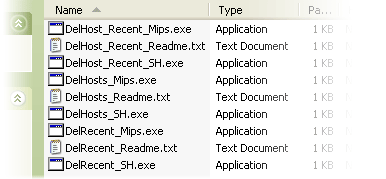
When you open the compressed file, or extract the files from the distribution file you will most likely see a number of similarly names files. Windows CE can run on a multitude of Processors. As a result developers must provide distributions of their applications targeted for each of the different processors that they wish to support.
It can often be confusing as to which version of the .exe file you will need. You need to ensure that you use the correct file for your version of Windows CE and your CPU. The main CPU types that you may encounter are:
For a comprehensive list of Windows CE processors, as well as numeric CPU identification strings which can aid in the identification of the correct Windows CE cabinet installer please see CESDD0004. If you are unsure which processor type your device uses you can ascertain which file you need to source by: On your Handheld PC
Once you know which processor your Handheld PC contains. You must now upload the cabinet file to your device. You must now upload the file(s) to your device. Uploading the file(s)There are a number of ways that you can upload the file(s) to your Handheld PC. Upload using Microsoft ActiveSync:
Upload using a CF Card reader
Other methods:Other methods which may facilitate the delivery of an application file to your Windows CE device are:
Installing the file(s)You can always run the application from where you uploaded it to. However HPC:Factor recommends that you store the application correctly on your Device. If you wish to use a CF storage card to hold the program instead of using the Handheld PCs internal memory you can do so. We also recommend that you try and install you applications organised by developer. For example if you are installing an application written by HPC:Factor install the application to:
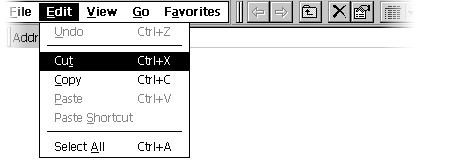
Create the directory structure on your Handheld PC by navigating to the Program Files directory and using the 'New Folder' option from the File menu in Windows CE Explorer. Move the files you uploaded into the directory using the Cut and Paste commands from the edit menu
You have successfully installed the application file(s) to your device. You may find that some applications contain sub directories or more than one files. The process for installing these files is identical to the process described above, however you must ensure that you maintain he directory structure. Adding a shortcut in the Start MenuFinally, you may wish to add an entry to the Windows CE Start Menu. To do this:
UninstallingThis method of distribution does not provide an uninstall routine. To remove the application and shortcuts you will have to manually remove the files and folders. |