| ||
Changing your Windows CE desktop wallpaperCESD|200074Applies To
OverviewThis article provides a guide to install, use and change desktop wallpapers for Windows CE based Handheld PC devices. You can download wallpapers from many places on the Internet, including here at HPC:Factor. For information on creating your own desktop wallpapers for Handheld PC devices please see the support section. How-to GuideInstalling and displaying wallpaper images on the desktop of your Handheld PC is similar to displaying them on the main stream versions of Windows. Windows CE supports two types of wallpaper image file. Monochrome 2-bit indexed 2bp files and standard BitMap (BMP) files. You cannot use .jpg, .tiff or .gif files as desktop wallpaper images like you can on some versions of Microsoft Windows. Windows CE will also accept indexed BMP files, however the colour pallet must use Windows standard colour tables for display on 256-colour displays. Uploading Wallpaper filesDepending on the format of the wallpaper image, a properly constructed Handheld PC wallpaper for a HVGA device can be almost 500KB, larger for FVGA and SVGA Handhelds. As the image files can be fairly large, you may wish to store them on a Storage Card. This is possible, however there are some issues with this.
Wallpaper files can be uploaded using ActiveSync, direct CF transfer or downloaded directly from the Internet to your device. See the support section for more information on transferring data to your device. Converting to mono .2bp AutomaticallyYou can use ActiveSync to upload wallpaper files to your Handheld PC from the Host. The default setting is to leave .BMP files in their original format on upload. If your H/PC is a monochrome device you can use ActiveSync to convert the image convert the file automatically to a 2bp which will save space and optimise the image for the mono screen.
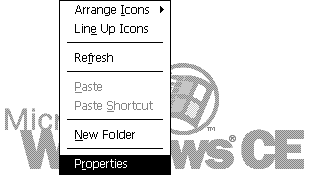
All .BMP image files will now be converted to .2bp files when you upload them to your device Changing the WallpaperTo change the desktop wallpaper you need to open the Windows CE 'Display' applet. There are two ways to do this: Alt + Tap the desktop and choose Properties:
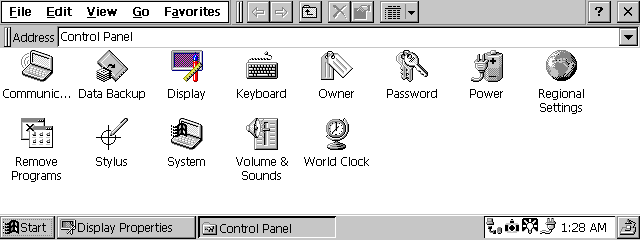
Run the Display applet through the Windows CE Control Panel:
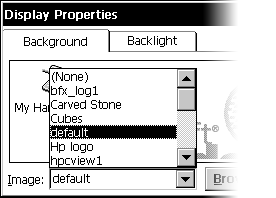
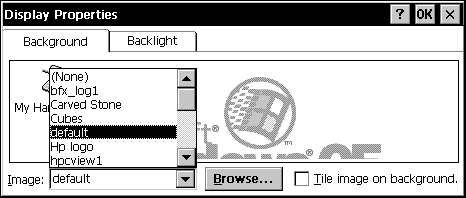
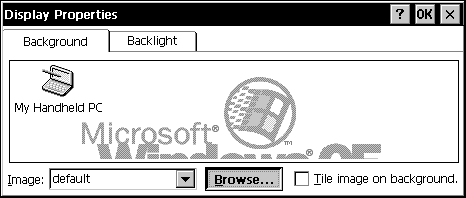
In the display applet you can change the background wallpaper image, backlight settings and depending on your device also contrast and colour scheme settings. If your wallpaper is stored in the \Windows directory on your Handheld PC, then you will be able to simple choose it from the 'Image:' drop box:
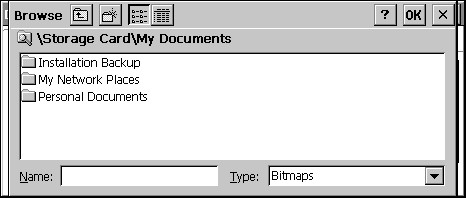
If you uploaded the wallpaper image to a Storage Card of a different location select browse:
Navigate to the location where the image is stored. Highlight it and tap OK:
Tiling the wallpaper: If you have a repeatable patter in your wallpaper, or just want to fill space. You can choose to tile the wallpaper image on the desktop.
This will have an effect similar to the following
|