| ||
Using the ActiveSync AvantGo 3.3.864 Client with your Handheld PCCESD|200078Applies To
OverviewMicrosoft ActiveSync 3.7.1 ships with a built-in AvantGo Host client. The ActiveSync client is version 3.3.864 where as the version available for the Handheld PC will devolve this to version 3.3.403. This guide explains how to use the 3.3.864 Host client with your Handheld PC without needing to install the older AvantGo software on your Host PC. DownloadsGuideThe purpose of the AvantGo installer for the Handheld PC is to provide you with a method of uploading the client software onto your device, the installing connection software and adding the necessary registry files onto your Host computer. ActiveSync 3.7.1 contains an updated version of the host software, however does not include the necessary registry values required to communicate with the Handheld PC. Unlike new generations of the Pocket PC which include the AvantGo client in ROM or on CD, the Handheld PC does not offer this out of the box functionality. NB: Please note that the Host settings files distributed with this article are betas. They have only been tested under Windows NT 4.0 and Windows XP. They are not supported nor endorsed by AvantGo. HPC:Factor will attempt to assist any errors you encounter however accepts no liability for the use of the patch. If you wish to use the ActiveSync client and bypass the use of the outdated AvantGo installer: How to check which version is installed on your Host PC:
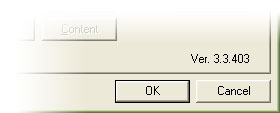
The AvantGo client version is listed on the bottom right of the configuration Window. If the AvantGo 3.3.403 client is already installed:Firstly, if you already have the AvantGo Handheld PC client installed, uninstall it from Add / Remove Programs in the Windows Control Panel.
Update the AvantGo Client Registry settingsFrom the CESD Download area download the settings file for your operating system. There are two settings files on offer: For Windows 95 / 98 / 98SE / Millennium and NT 4.0 choose the AvantGo 9x / NT4 settings file For Windows 2000 / XP and Windows 2003 choose the AvantGo 2000 / XP settings file
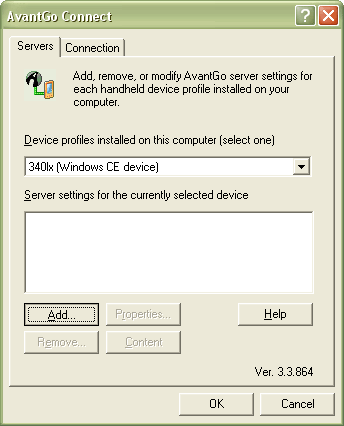
To install the settings update double click the avantgo4x.exe or avantgo5x.exe and follow the instructions on screen. Install the Windows CE CabinetsDownload the AvantGo client files from the download section for your Handheld PCs processor (Arm, MIPS or SH3) Install both files in contained in the distribution file. The MAL.<processor>.cab is the synchronisation client. Avantgo.<Processor>Cab is the AvantGo channel viewer. You must install both applications on your Handheld PC. Configure the AvantGo ServerYou can configure the AvantGo server using the automatic AvantGo configuration server or manually using the Windows Control Panel. Automatic Configuration: To use the Auto Configuration server connect your Handheld PC to your Host PC and click the following link using your Host PC's web browser and sign into your AvantGo account: Manual Configuration: On the host PC open the Windows Control Panel
Click Add...
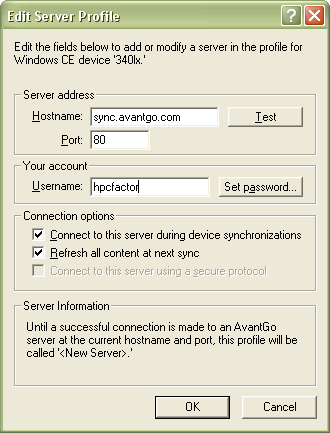
In the Hostname field type: sync.avantgo.com
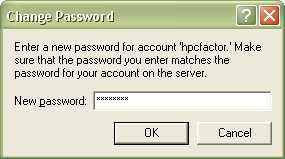
Enter your AvantGo password and click OK
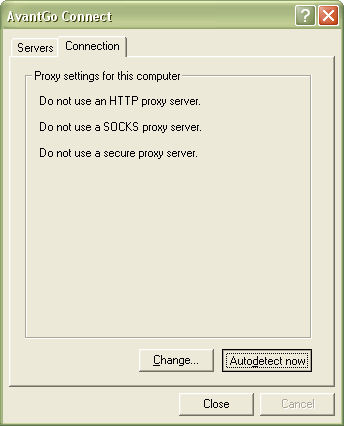
Open the Connection tab and click Autodetect now
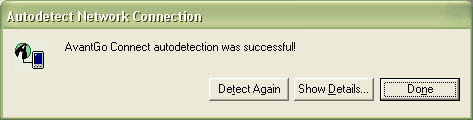
If all settings are correct the above will be displayed. Click Done and exit the configuration applet. Synchronising with AvantGoOpen Microsoft ActiveSync from the Start Menu or System Tray Select Tools
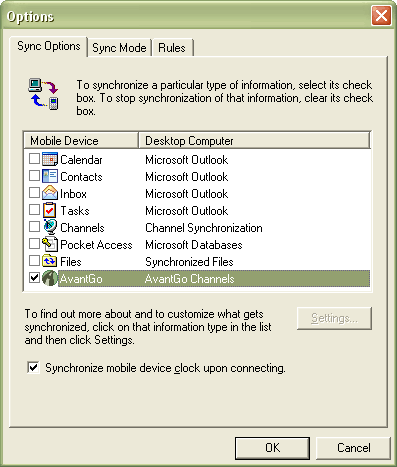
Place a tick next to the AvantGo entry to enable device synchronisation of downloaded AvantGo channels.
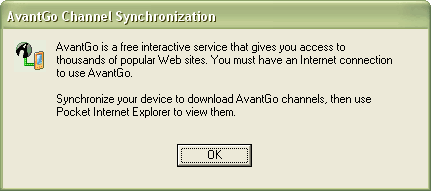
The above AvantGo 3.3.864 message should be displayed Click OK Connect your Handheld PC to your Host
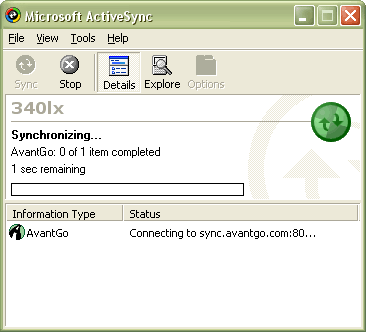
AvantGo will now synchronise with your Handheld PC using the ActiveSync client. |