How to install the Windows CE 1.0x Power Toys
CESD|200090Applies To
- Windows CE 1.0
- Handheld PC Explorer 1.0, 1.1
Overview
This guide discusses the steps involved in installing the Power Toys 1.0 release for Windows CE 1.0 based Handheld PC's.
Downloads
Guide
The Windows CE 1.0 Power Toys add additional functionality, performance enhancements and productivity tools to your Handheld PC. The installer is only available as a Host Side Installer as Windows CE 1 generation devices do not support the Cabinet installation method.
To find out more about the Windows CE 1.0 Power Toys, read the HPC:Factor review.
- Download the Power Toys 1.0 installation package from the CESD Download Centre
- Double Click powtoy.exe to begin the installation
- Click next to begin the Installation Process
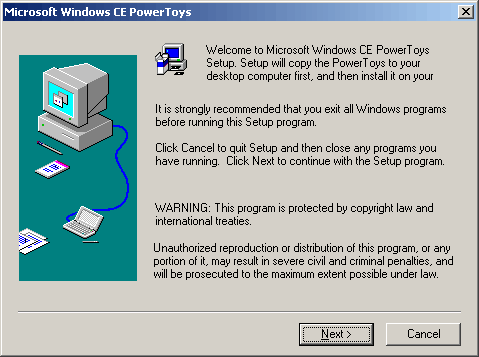
- You must accept the standard Microsoft supplemental EULA before you can install the Power Toys.
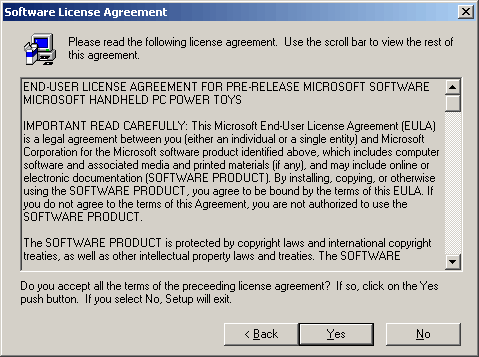
- Choose the Host side installation directory for the Power Toys files. The files copied to the installation directory will be uploaded to your Handheld PC when you next connect to your Host. Click next to proceed.
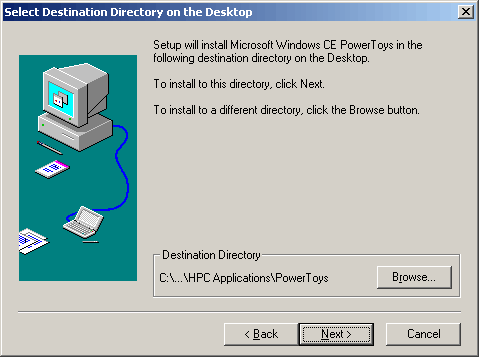
- This screen allows you to choose which components of the Power Toys 1.0 set you wish to install to your Handheld PC. Add or remove the check boxes next to the applications as appropriate. Click Next when ready.
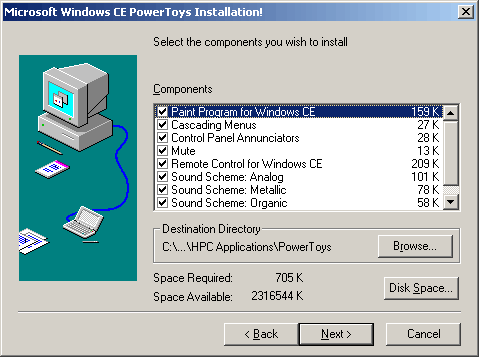
- You have now provided the installer with all the information needed to install Power Toys. At this point you should connect your Handheld PC to H/PC Explorer. You must have already established a device partnership between H/PC Explorer and your H/PC before you can continue. Once you have successfully connected your device click Finish to being the application transfer.
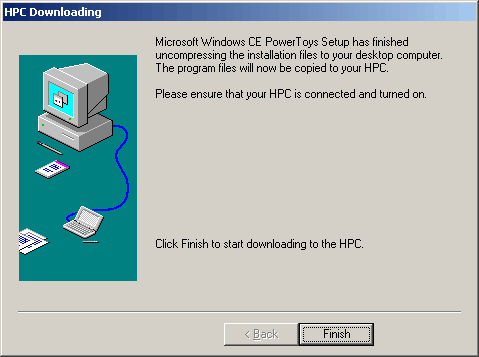
- Power Toys will now be installed onto your Handheld PC.
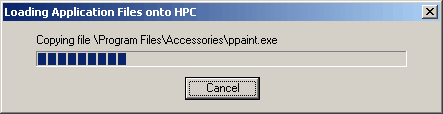
- If you chose to install the Control Panel Annunciators you will be prompted with a file over write dialogue box. You must choose Yes or Yes to all and allow the files on your device to be over written.
Remember that the master files on your device are stored in ROM, should something go wrong a Hard Reset will recover the files.
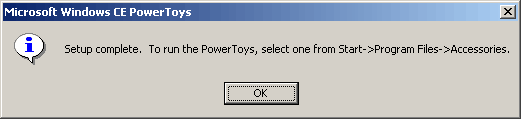
- Once completed successfully you will see the following message.
- If you chose to install the H/PC Explorer Remote Control Power Toy, the following message will be displayed on your mobile device.
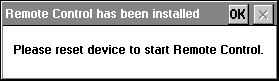
You should soft reset your Handheld PC as per the manufacturers guide lines to complete the Power Toys installation irrespective of whether you see this message. If you do not soft reset Remote Control will not be able to connect to your device as the daemon will not be running.
The above message is not entirely accurate as only three of the Power Toys applications are accessed via the Start Menu on your H/PC. For more information on using the Windows CE 1 Power Toys please see the HPC:Factor review here.
Uninstalling
To uninstall the Power Toys:
- Click Start, Settings and Open Control Panel
- Choose Add / Remove Programs
- Double Click PowerToys v1.0 (Remove Only)
- Confirm removal from your desktop PC
- You may need to repeat the process on your Handheld PC device
See Also
Power Toys for Windows CE 1.0 Review

