Automatically updating Windows CE Channel Information using the Task Scheduler
CESD|200164Applies To
- Windows CE 2.0
- Handheld PC Professional
- Handheld PC 2000
- Palm-Size PC 1.0, 1.1, 1.2
- Internet Explorer 4.0 or higher
Overview
By default the Channel Wizard application lacks the ability to automatically synchronise Channel content based on a schedule. This functionality was later added into ActiveSync as a module for Internet Explorer's Off-line Folders service, however this functionality only interoperates with the Pocket PC.
This article discusses how to setup automatic synchronisation using the Windows Task Scheduler Service.
More Info
Task Scheduler functionality is found in Internet Explorer 4.0 or higher, and comes as standard in Windows 98, 98SE, Millennium, 2000, XP and 2003. The service can be added to Windows 95 and NT 4.0 by installing the Internet Explorer Active Desktop Shell.
In order to make use of the newer Task Scheduler you must upgrade your Windows 95/NT4.0 Install to use the HPC:Factor Internet Explorer 5.5 SP2 installation. This will upgrade the Windows Services manager to make use of the updated components.
Users of Windows 95 using the Plus! System Agent or NT 4.0 users running the Schedule service should follow
CESDS0098 and
CESDS0097 respectively.
How-to Guide
- Open "Scheduled Tasks" from Start > Programs > Accessories > System Tools| > Scheduled Tasks.
- Double Click "Add Scheduled Task" to open the Schedule Task Wizard.
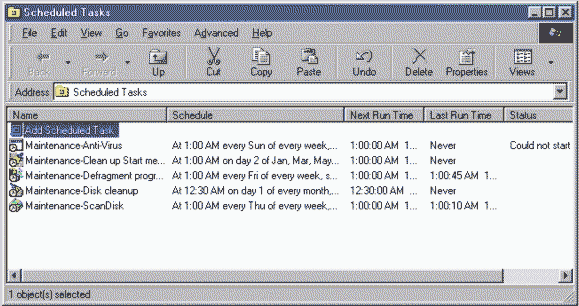
- On the first screen of the wizard, click the "Next" button.
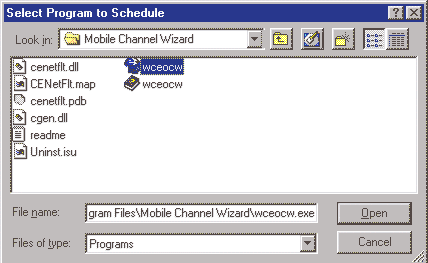
- On the second screen, click the "Browse..." button.
- Copy the following path into the "File name" field:
"c:\Program Files\Mobile Channel Wizard\wceocw.exe"
and click "Open".
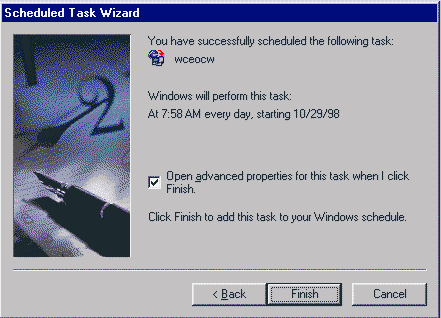
- On the next screen, enter a name for the Task and select how often to perform the task of updating the Channel. Then click "Next".
- On the next screen, select time of day to run task, and click "Next".
- On the next screen, checkmark "Open advanced properties for this task when I click Finish", and click the "Finish" button.
- In the Advanced Properties "Run" field enter the Mobile Channel Wizard instructions that you would like to schedule.
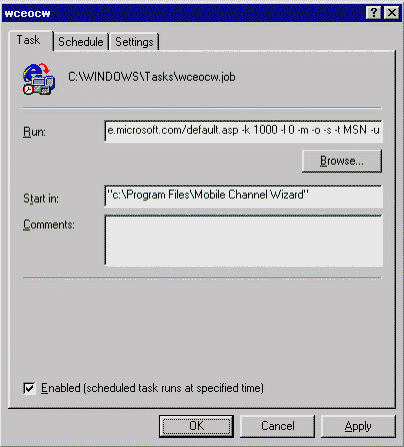
For example entering:
"c:\Program Files\Mobile Channel Wizard\wceocw.exe" -c http://www.hpcfactor.com/default.asp -s -k 1000 -l 0 -m -u
into the "Program:" field will create a Mobile Channel out of http://www.hpcfactor.com/default.asp
The -letters that follow "c:\Program Files\Mobile Channel Wizard\wceocw.exe" are options which effect the Mobile Channel that is created. In the above example
- [-c http://www.hpcfactor.com/default.asp] begins the creation of the Mobile Channel at the starting page http://www.hpcfactor.com/default.asp
- [-s] places the channel in synchronisation options
- [-k 1000] downloads a maximum of 1000 kilobytes
- [-l 0] in addition to the starting page (http://www.hpcfactor.com/default.asp) download 0 levels of links
- [-m] specifies that sound and images are to be included
- [-u] causes unrestricted following of links
NOTE: The [-c URL] and the [-s] are both required options. The default settings when other options are not used are: to have unlimited download size, in addition to the starting page download 0 levels of links, do not download sound and images, and to limit followed links to pages within site and below the starting page (selected in -c).
Below is a listing of options that can follow after "c:\Program Files\Mobile Channel Wizard\wceocw.exe":
| Usage: "c:\Program Files\Mobile Channel Wizard\wceocw.exe" [-c {URL}] [-s] [-k {n}] [-l {n}] [-m] [-p {directory}] [ [-o] | [-u] ] |
| -c {URL} |
starting page to begin download (required) |
| -s |
Automatically subscribe to generated channel (place in channel synchronisation options) (required) |
| -k {number} |
Maximum download size (KB) (default is unlimited) |
| -l {number} |
in addition to the starting page, number of levels of links to download (default is 0) |
| -m |
download Images and Sounds (default is not to download Images and Sounds) |
| -p {directory} |
path to publish to generated CDF into |
| -o |
limit followed links to pages within site (default is pages within site, and below the starting page selected in -c) |
| -u |
unrestricted link following (default is pages within site, and below the starting page selected in -c) |
| -? |
help |
- Click "OK".
Follow these steps for each Mobile Channel Wizard channel for which you would like to schedule automatic updates.
Notes for Modem Users
If the Mobile Channel Wizard has been scheduled to run during times when the computer is not already connected to the Internet, the user will be prompted to connect. To avoid manually stepping through the connection process, try either of the following options:
- Schedule updates to occur only when modem is connected. This may mean leaving modem connected if scheduling of frequent updates is desired, or scheduling updates less frequently.
- Checkmark the "Save password", and "Connect automatically" boxes. This will allow "Dial-up Connection" to automatically make a connection without user intervention.
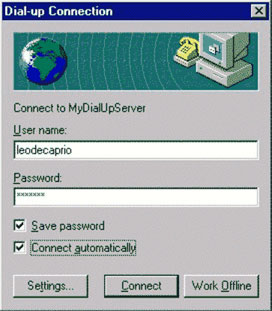
WARNING: This will allow anyone to make a connection from the computer without the need of a password.
To automatically disconnect after updating the Mobile Channel take the following steps:
- Open Internet Explorer from under Start > Programs > Internet Explorer > Internet Explorer or by double clicking on the desktop icon.
- Under the "View" menu choose "Internet Options...".
- Select the "Connection" tab, and press the "Settings..." Button.
- Checkmark the "Disconnect if idle for X minutes" box. In the minutes dialogue select how long after downloading the Mobile Channel, the computer should disconnect.
Note: This will break connections any time the computer is idle for the specified amount of time.
Acknowledgements
The information in this article was in part originally published by the Microsoft Corporation.

