Creating a device Partnership using H/PC Explorer 1.1
CESD|200091Applies To
- Windows CE 1.0, 1.01
- H/PC Explorer 1.0, 1.1
Overview:
This guide covers the steps involved in setting up a Handheld PC Explorer partnership with your Windows CE 1.0x based Handheld PC. It assumes that users are using H/PC Explorer 1.1. Anyone still using H/PC Explorer 1.0 should upgrade immediately.
Guide:
Once you have installed H/PC Explorer 1.1, if you are running Windows 2000 or Windows XP you should follow our guides to establishing a connection. If you are running Windows NT 4 you should be sure to reapply Service Pack 6a.
- When you first run H/PC Explorer you will be prompted to specify which communications port you will use to connect to your Handheld PC.
- From the drop box select the communications port that your Handheld PC is connected to.
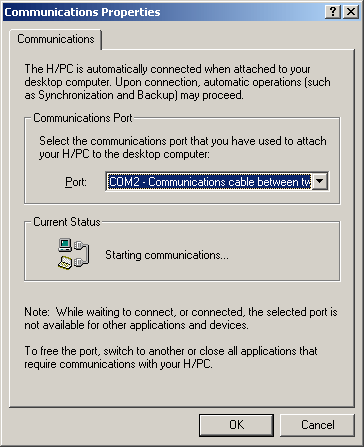
- If you followed out Windows 2000 / XP guides your Handheld PC should already be connected to your computer. If you are running Windows 9x or NT 4 you should now run PC Link on your device. While PC Link is attempting to connect select OK to close the communications properties Window.
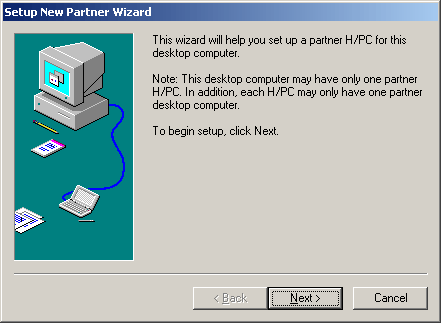
- Your Handheld PC will now authenticate to H/PC Explorer. The New Partnership wizard will automatically begin. To start the process of creating a partnership, click Next.
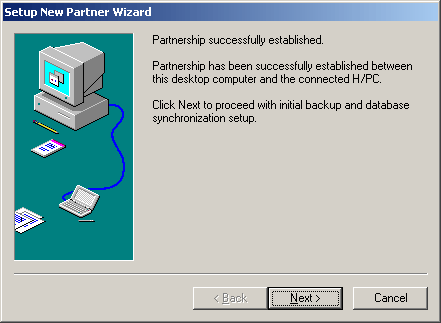
- The wizard will communicate with your device for a few moments, will uniquely identify your device and create the necessary partnership settings on your PC. Once completed you will see the following message. Click next.
- The next step in the process requires you to choose whether or not you want to automatically synchronise PIM (Contacts, Tasks, Calendar) data from Microsoft Schedule+ / Outlook with your Handheld PC. If you do not wish to automatically synchronise data simply click Next. Other wise press the Synchronise Now button.
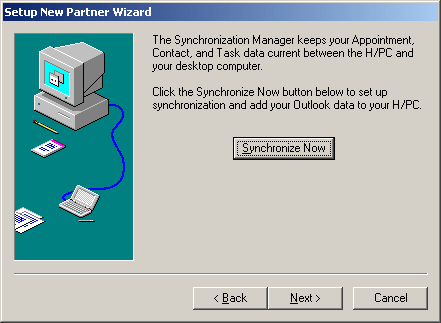
- Automatic synchronisation means that your PIM information will be synchronised between your Host and Mobile Device each time you connect. This can be useful, however can prevent you from using H/PC Explorer in situations where you need to immediately connect and transfer files. If you disable automatic synchronisation here you will have to press the Synchronise now button on the H/PC Explorer main window.
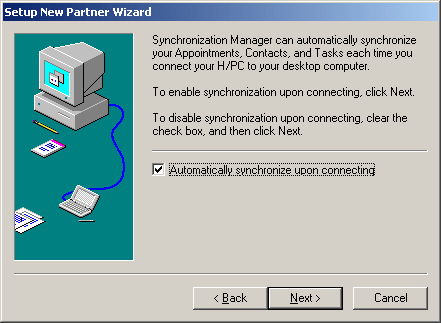
Click next to continue.
- Lastly, if you wish to create a Host side image of all of your data in the Handheld PC's main memory you can select to create a Full Backup. If you do not want to do this simple click next.
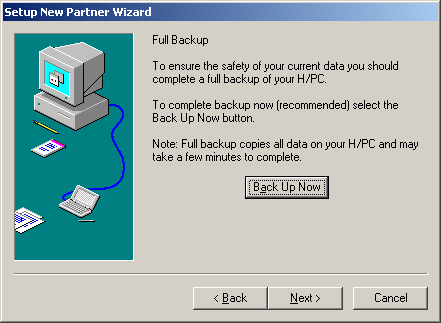
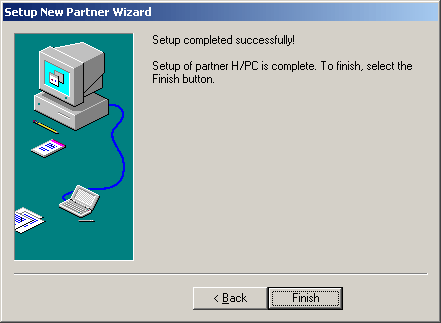
- That's it. The Partnership wizard is now complete. Click finish to exit and begin using your Handheld PC.
- H/PC Explorer will start, synchronise your PIM data and display the contents of your Handheld PC's desktop.
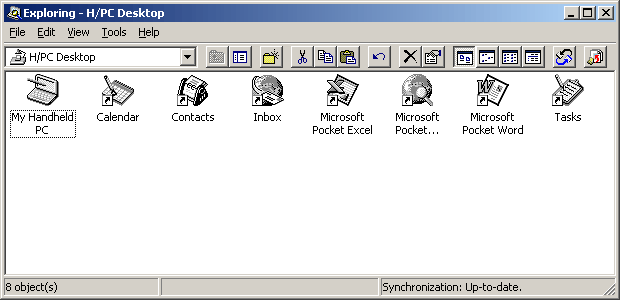
 To synchronise your Handheld PC device manually simply press the Synchronise Now button on the toolbar to begin the synchronisation process.

