| ||
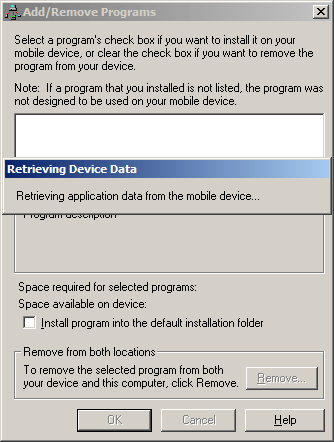
Add/Remove Programs always appears when you connect your H/PC to ActiveSyncCESD|200134Applies To
OverviewWhen you cradle your Handheld PC through USB, Infrared or Serial the ActiveSync Add/Remove Programs (CEAppMgr) application launches automatically. More InfoThe Windows CE Application Manager will be forced to load by ActiveSync when an application bundled into a Host installer is installed onto your PC. (see CESDS0046 for more information)
The application manager settings which encore the loading of a software program onto the Windows CE device can become locked under an unusual set of circumstances through which the Host installer initialises the CEAppMgr program, but fails to register itself with a device because it is not present. If the Host installation files are removed from the PC using the Windows Add/Remove Programs (Add or Remove Programs under Windows XP) before the CEAppMgr is able to register either a successful installation or an unsuccessful installation onto the Windows CE device. Then the registry settings used by ActiveSync to offer any partnered device access to the software library will not be removed. SolutionTo resolve the problem you must remove the auto-launch entries from the ActiveSync configuration in the Windows registry. The following information outlines editing the Windows Registry. If performed incorrectly you can cause serious damage to your PC. Ensure that you have full, recent backups of both your PC data and Handheld PC before continuing.
When you next connect your Handheld PC to the host, Add/Remove Programs should not be displayed. |