| ||
Review
Phatware CalliGrapher 6.6 24 January 2005 Cost: $39.95 USD (£33.02 GBP, €37.97 EUR, ¥5,964.44 JPY, est.) Shareware HPC:Factor Rating
Find out more View Phatware CalliGrapher 6.6 in the Software Compatibility List. Discuss this review Let us know what you thought in the community forums. About The Author Latest Reviews
| Phatware's CalliGrapher 6.6Chris Tilley | Editor-in-Chief It will be considered perhaps the most difficult sell we could find. Bestow the virtues of a keyboard on to a Pocket PC user and you find accessories hauled around and neatly assembled 'on demand'... they in essence attempt to build themselves a Handheld PC. Which they will then assemble onto the nearest table and fold ceremoniously away when it is time to move on. You bet. Microsoft wants us to believe that the keyboard is becoming a legacy device, and with that regard. So do PhatWare. 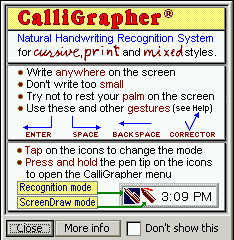
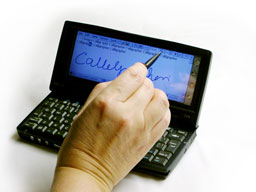
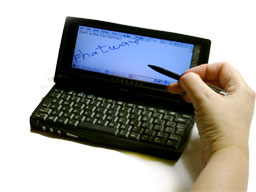
At its heart Calligrapher is a handwriting recognition engine but it is so much more than just that, and this is what adds to making it an equally useful tool on the H/PC. 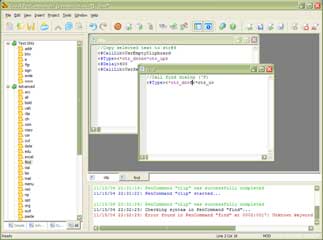
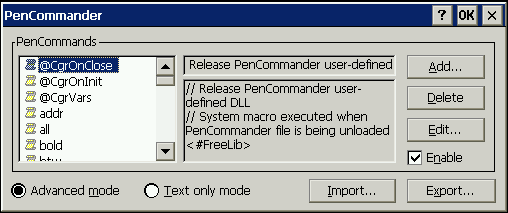
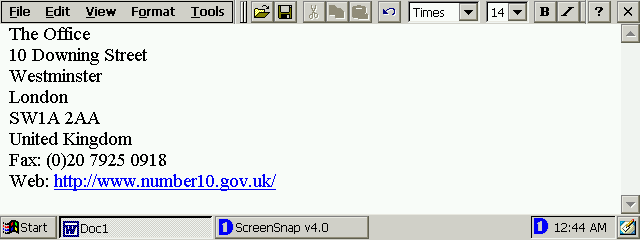
PenCommander makes use of its own macro scripting language which allows for the creation of very Simple text entry and automation scripts, right up to some surprisingly complex and even ingenious system and application control macros. At its most elementary level PenCommander can be used to simplify the use of some of the most common articles of literary include that you may encounter. You postal address being the prime example. 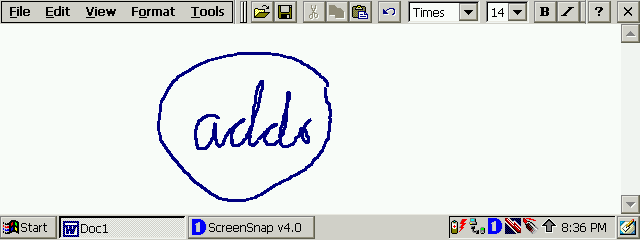
Other time savers that are immediately obvious are Internet address prefix's (ftp:// and http://www.) or indeed an entire Internet address. Write 'bank' on the screen and encircle it in the activation ring to have your eBank brought up. More personal uses can be readily found in the use of letter headers and letter sign off. When it comes to really making use of the power afforded by the macro features of PenCommander, the macro scripts are limited only by your imagination. As an example of this, take the forums here on HPC:Factor. To log in to the forum on a HVGA clamshell you have to carry out the following:
You are now logged into the forum. Using PenCommander this process can be completely automated using a Macro script similar to the following (Note: This bypasses step 6 and 7 from above) <#Start>\Windows\iexplore.exe The above code should be relatively easy to follow. Calligrapher opens Pocket Internet Explorer, then after a 2000 millisecond (2 second) delay, uses the screen coordinate 483x12 to virtually 'tap' the screen. Using a PenCommander action, for example "hpcforum". You can use this saved code as a shortcut to directly log into the site. One feature of Calligrapher that I neither anticipated to be part of the program nor in the same light would have thought useful is RiteCalc. RiteCalc is an extension of PenCommander, which allows you to write a mathematical calculation directly onto the screen. It will then be run through the recognition engine, which will take the equation and output a representation of the calculation and the answer in to any selected text field. Numbers containing up to seven digits proceeding and two digits succeeding the decimal place can be input and output. Calculations can be written using +, -, x, /, *, :, ÷ and should all end with the = sign. Calligrapher sees the equation followed by the equals sign and performs the calculation. 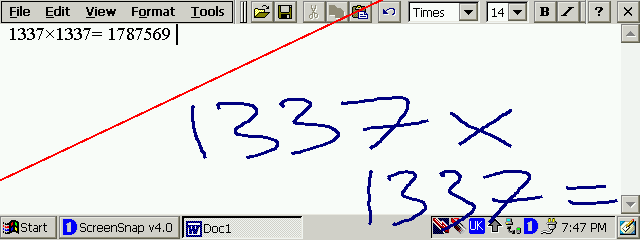
Square root, powers as well as other maths functions are available using PenCommander gestures adding a surprisingly useful facility and saving a trip into the often-clumsy Windows CE calculator. The handwriting recognition engine is designed to interpret print, cursive and combinations of the two writing styles. Like all such technologies the more you use it the more accurate the output becomes. Out of the box the default recognition quality is fairly accurate. Personally I have found one or two problems in unconditional interpretation. Admittedly a lot of this comes down to some of my more quirky character styles (Notably my lower case F, which doesn't even feature in the shape selector - part of the recognition customisation process). The Calligrapher package is expansive in its features, containing considerably more than can be covered in this review. To demonstrate this, just enable all the options in the Icons settings dialogue. Calligrapher will happily to take up a good chunk of your Handheld PCs taskbar with application shortcuts, giving you an idea of how featured the package is. 
Other pats of Calligrapher not covered here are the ScratchPad, which allows for note taking and drawings to be saved to a file. Later, using PhatWare's deferred recognition technology. The file can be transcribed at another time. 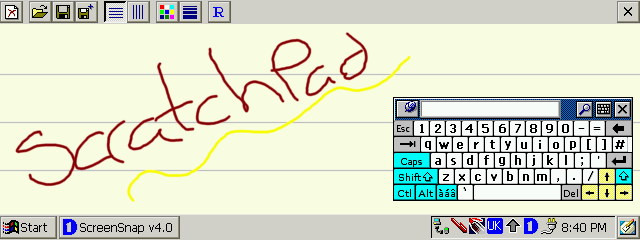
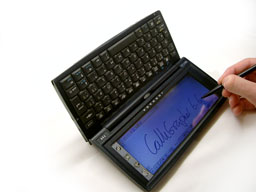
Another facility that is of explicit use to Handheld PC users is the Screen Orientation Selector. This is simply one of the available tray icons, which isn't enabled by default. It provides a single tap interface which allows you to change the writing angle through six phases. By changing the input angle you can alter the angle of your pen input, which is exceptionally useful on a HVGA device where there is a keyboard where your hand wants to be.
Orientation modes have been provided to make input easier for right and left handed users as well as allowing you to flip the device around completely. Unfortunately the corrector features of Calligrapher only work in three of the available six modes. Meaning if you need to make corrections using the advanced spell checker services you need to change back to a more ordinary orientation. When it comes to customer care, PhatWare's technical support is fantastically efficient, demonstrating time after time during our numerous PhatWare reviews over the years, their commitment to customers. With anonymous test email receiving a human reply in an astonishing 10 minutes. Calligrapher 6.6 is an exceptionally well-groomed application, having received a lot of careful work from PhatWare over its many years in production. On device documentation is provided through Windows CE help, and provides a good reference point as well as covers the basics. A comprehensive PDF manual is also available, along with official support forums. So if you are stuck, you are unlikely to be for long. The application costs $39.95 USD, which unfortunately is $10 USD more than its Pocket PC counterpart. System RequirementsWindows CE 1.0 and above Chris Tilley More information on Phatware CalliGrapher 6.6 can be found at Ratings
Further DiscussionLet us know what you thought of this review and the Phatware CalliGrapher 6.6 in the Community Forums! Tags | App CalliGrapher Phatware Review Software
| ||||||||||||||||||||||||||||